

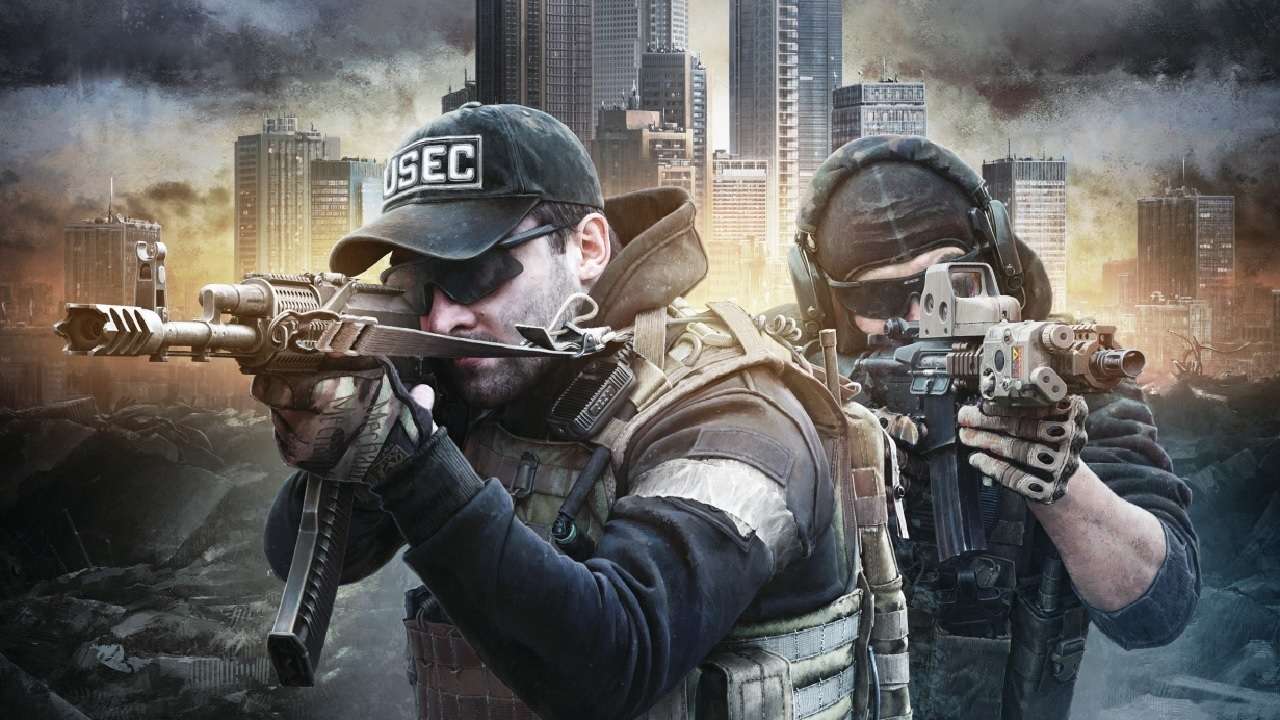

Escape From Tarkov has been “out” in some form or another since 2016, first with the closed alpha and eventually a closed beta, available to those who pre-order the game on its official website. Described as a “hardcore story-driven MMO” with RPG and FPS elements, Escape From Tarkov’s popularity surged at the start of the new year thanks to some popular streamers picking it up over the holidays. It also received its biggest update yet in October 2019. If you’re new to Escape From Tarkov or are looking to get into it, now is a great time.
One thing that sets Escape From Tarkov apart from other multiplayer shooters is how detailed and finely tuned every aspect of it is, from combat to movement to inventory management. Unless you’re used to more realistic military sims like ARMA or adjacent games like DayZ and even PlayerUnknown’s Battlegrounds, Tarkov’s barrier to entry is a bit higher than your average shooter–if you really want to be on top of your game, you’re going to have to learn a lot of hotkeys.
Below, you’ll find a handy list of some of the most important and commonly used hotkeys in Escape From Tarkov, as well as a rundown of the basic controls: the action, the primary key binding, and the press type (if it’s something other than pressing or releasing a button) listed below are all the current default from Escape From Tarkov’s settings. We’ve changed the wording for “press type” or “input type” to be a bit more basic than what the game’s official settings specify–“continuous” is now “hold down,” for instance, meaning it’s a key you need to hold down rather than just press once. We’ve also added a few hotkeys that were unlisted and bolded some particularly handy ones to memorize, which we’ll go over individually.
Note that the distinction between a “basic” and “advanced” control in this guide is entirely for organizational purposes–Escape From Tarkov’s game settings don’t distinguish its inputs this way, this is just to make things clearer for new players. What’s “advanced” for one player might be considered “basic” for another–it all depends on how new you are to the kind of hardcore, genre-bending shooter Tarkov strives to be. In any case, we hope this guide will help you learn the finer nuances of Tarkov’s movement, how to properly wield your weapons and take advantage of their customizability, and how to quickly cycle through your inventory when exploring and looting in the dangerous city of Tarkov.
If you’re interested in picking up the game, check out our Escape From Tarkov pre-order guide for a quick breakdown on where to buy and the differences between its four editions. Escape From Tarkov is currently not on Steam.
Basic Movement and Controls
| Command | Key | Input Type |
|---|---|---|
| Move forward | W | — |
| Move left | A | — |
| Move backward | S | — |
| Move right | D | — |
| Lean left | Q | Hold down |
| Lean right | E | Hold down |
| Jump | Space | — |
| Walk | Caps Lock | Press to toggle |
| Sprint | Left Shift | Press to toggle |
| Crouch | C | Press to toggle |
| Prone | X | Press to toggle |
| Interact | F | — |
| Open inventory | Tab | — |
| Next | Mouse Scroll+ | — |
| Previous | Mouse Scroll- | — |
| Check time | O | — |
| Check time and exits | O | Double tap |
| Mumble | Y | — |
| Open mumble dropdown | Y | Double tap |
| Mumble preset | F1-F12 | — |
Movement in Escape From Tarkov is bound to the WASD keys by default, and the ability to jump, crouch, and go prone are pretty straightforward too. There are more advanced movement options to be aware of that we’ll list out under Advanced Movement, but the major takeaway from this section should be some of the basic interaction inputs, notably hitting F to grab items, loot bodies and containers, and open and close doors.

But another big one not to overlook is double-tapping “O” to check time and exits. Every raid you enter comes with a time limit and a set of potential extraction zones, and you should be tracking both while you’re out looting. Hitting “O” twice pulls up that information in the top right corner.
Advanced Movement and Controls
| Command | Key | Input Type |
|---|---|---|
| Free look | Middle Mouse Button | Hold down |
| Smooth lean left | Left Alt + A | — |
| Smooth lean right | Left Alt + D | — |
| Sidestep left | Left Alt + Q | — |
| Sidestep right | Left Alt + E | — |
| Next walk pose | C + Mouse Scroll+ | — |
| Previous walk pose | C + Mouse Scroll- | — |
As you can see, Escape From Tarkov features both basic lean and crouch options as well as more advanced, incremental variations. Unlike leaning using Q and E, “smooth” lean lets you only lean out a little bit at a time. You also don’t need to hold Alt down unless you’re adjusting your lean position, so you can stay leaned the degree you want while behind a corner and have your keyboard hand free. You can use the standard Q or E lean to stand back upright. You can also cycle between “walk poses,” which are just different degrees of crouching that you can adjust to adapt to the height of whatever cover you’re behind. Hitting C automatically takes you to the lowest crouch level and hitting C again makes you stand up. To exercise more caution, you can use walk poses to rise and lower yourself more deliberately.

Free look is another important one. If you recall from the basic controls section, there are three movement speeds in Escape From Tarkov: the default walking speed, the slower walking speed you can toggle with Caps Lock, and sprinting, which you can toggle with Shift. You can’t sprint while strafing, so your field of view is limited to what’s in front of you–but by holding down the middle mouse button while moving, you can freely look around. Currently, your free look range is still pretty narrow, but it does allow you to quickly glimpse blind spots while in a hurry. You can even use free look while scoped in so you’re not completely unaware of short-range threats while sniping.
Basic Combat and Equipment Controls
| Command | Key | Input Type |
|---|---|---|
| Shoot/Fire | Left Mouse Button | — |
| Aim down sights | Right Mouse Button | Press to toggle |
| Reload weapon | R | — |
| Quick reload | R | Double tap |
| Next magazine | R + Mouse Scroll+ | — |
| Previous magazine | R + Mouse Scroll- | — |
| Throw grenade | G | — |
| Equip melee weapon | V | — |
| Quick draw melee weapon | V | Double tap |
| Hold breath to steady aim | Left Alt | Press to toggle |
Escape From Tarkov strives for a bit more realism with its guns than most games do. You have the standard right-click to aim, left-click to shoot, and R to reload, but there’s way more to it than that.
One major thing to note from this section is the difference between a reload and a quick reload. Just hitting R for a standard reload in Escape From Tarkov will remove the current magazine in your firearm, place it in an open slot in your inventory, and replace it with the next magazine in your inventory. (You can even select which magazine to load in from your inventory by holding R and scrolling with the mouse wheel.) A quick reload, as the name suggests, saves some time by having your character throw the current magazine onto the ground before loading in a new one. You won’t get far in Escape From Tarkov being too trigger-happy or constantly reloading after every shot, which most FPS games let you get away with, but quick reloads can be appropriate in an emergency. You just have to remember to pick up your dropped magazine later.
Remember that reloading is more realistic in Escape From Tarkov, unlike more casual shooters–you’re not reloading bullets into a magazine by tapping R, you’re actually replacing the entire magazine. So if your current magazine had a few rounds left, it’ll go into your inventory with that same amount of rounds, and if you reload with it next time, you won’t have a full magazine. (You can manually load rounds into magazines from the inventory.) To complicate things further, reload times vary depending on what gun you’re using and whether or not it already has a round in the chamber.
Moving on to melee combat. Pressing V will equip your melee weapon (you’ll start out with a knife), but double-tapping V will do something the in-game settings call “Draw Knife,” but what I’ll call a “quick draw” instead. Quick drawing your knife will holster your currently equipped weapon, draw your knife out and do a quick stab, then sheath your knife and pull out your previous weapon, all just by double-tapping V.
Finally, holding your breath with Left Alt while aiming down sights will steady your firearm’s aim. This used to be bound to the Shift key, but was changed. Many players end up remapping this one to avoid interfering with other commands involving the Alt key, and setting its input type to “hold” instead of “toggle.” We recommend playing around with different settings and keybindings in offline mode and seeing what works for you.
Advanced Combat and Equipment Controls
| Command | Key | Input Type |
|---|---|---|
| Activate night vision goggles/Lower face shield | N | Press to toggle |
| Activate tactical device (flashlight, laser, etc.) | T | Press to toggle |
| Switch tactical device mode | Left Ctrl + T | — |
| Switch scopes | Left Ctrl + Right Mouse Button | — |
| Change scope magnification | Left Alt + Right Mouse Button | — |
| Check ammo | Left Alt + T | — |
| Change fire mode | B | — |
| Check fire mode | Left Alt + B | — |
| Check chamber | Left Shift + T | — |
| Examine weapon | L | — |
| Fold stock | Left Alt + L | — |
| Overhead blind fire | Left Alt + W | — |
| Right side blind fire | Left Alt + S | — |
| Equip weapon on the back | 3 | — |
| Equip weapon on the sling | 2 | — |
| Equip secondary weapon | 1 | — |
| Slot 4 | 4 | — |
| Slot 5 | 5 | — |
| Slot 6 | 6 | — |
| Slot 7 | 7 | — |
| Slot 8 | 8 | — |
| Slot 9 | 9 | — |
| Slot 0 | 0 | — |
| Scope elevation up | Page Up | — |
| Scope elevation down | Page Down |
Here, you get into the real nitty-gritty of Escape From Tarkov’s firearm mechanics. Most of it is pretty straightforward: inputs for switching scopes and cycling through reticles once you get more advanced modifications for your guns, using the number keys to cycle through weapons, and so on. Changing your fire mode between single (the default starting mode), burst, and full-auto with the B key is an important one, but the other ones worth explaining from this section include how to toggle your “tactical device,” check ammo, and blind fire.
Tactical devices in Escape From Tarkov can be toggled with T, and it’s important to note these include flashlights and lasers. So if you have the right mod equipped and you’re wondering how to turn on your flashlight, it’s T. Many serious Escape From Tarkov streamers like Shroud have rebound this command (as well as the input for changing scope magnification) to Mouse Button 3, 4, or 5 for easier access.

Checking ammo with Left Alt + T can be vital, since Escape From Tarkov’s HUD doesn’t track how much ammo you have left–even when you use this input to check ammo, it won’t give you an exact number. Finally, you can blindfire from behind cover using Left Alt + W for overhead firing or Left Alt + S for right-side firing around corners. At the moment, it does not seem Escape From Tarkov has the option to switch firing positions between right and left shoulders.
Inventory Management and Looting Controls
| Command | Key | Input Type |
|---|---|---|
| Examine | Middle Mouse Button | — |
| Quick transfer | Ctrl + Left Mouse Button | — |
| Quick equip | Alt + Left Mouse Button | — |
| Split stack | Ctrl + Left Mouse Button | Click and drag |
| Discard | Del | — |
| Rotate item | R | — |
Nothing is bolded here because it pretty much all needs explaining. A major part of Escape From Tarkov is looting and inventory management, so you’ll be spending a lot of time looking at your inventory and your stash, but if you’re in a raid it’s important to minimize that time so you’re not vulnerable. To quickly grab an item from a looted container and transfer it to your inventory, just hit Ctrl + Left MB. This works when transferring items between your inventory and your stash too.
To quickly equip something in your stash or from a container, you can use Alt + Left MB. You can click and drag items around with the left mouse button to place them in specific slots. Pressing R while dragging an item rotates it so you can use the space you have more efficiently. To split a grouped item like a stack of ammo, hold Ctrl and click and drag the item you want to separate to a new cell. A box will pop up where you can designate the number of items you want to place in the new stack. If you have unknown, greyed-out items in a container, your inventory, your stash, or even a trader’s inventory, you can quickly examine and reveal those items by clicking on them with the middle mouse button. Finally, you can hover over an item you don’t want and press delete to discard.
Other Controls
| Command | Key | Input Type |
|---|---|---|
| Take a screenshot | PrtScn | — |
| Toggle icons | I | — |
| Console | ` | — |
| Open menu | ESC | — |
As stated above, these are just the default key bindings for Escape From Tarkov’s controls and we recommend testing things out and seeing what works for you. Like most games, you can reset the primary key for each command and set a secondary input on top of it. You can even change the press type for even more customization.
Did we miss something? Escape From Tarkov is still in development, so things are always being updated and changed. Plus, the community is awesome at finding out new tricks and techniques. Feel free to leave a comment below if we left something important out or if a piece of information is outdated.
Recent Comments